Gmail is at it again. In the past, you could get stickers from them or have them send someone a holiday postcard. Now, they have a game based on Gmail. Galactic Inbox is an HTML5 game designed by Google Creative Technologist Paul Truong which allows you to control a Gmail envelope which shoots such hazards as trash, spam, and old email systems which only limited you to a 2 MB inbox. Galactic Inbox is perfect for a very brief afternoon diversion and also as an exploration of HTML5. To play the game, you will need to be using a browser that supports HTML5, such as Google Chrome.
Showing posts with label gmail. Show all posts
Showing posts with label gmail. Show all posts
August 13, 2010


December 3, 2009
Send Holiday Greetings with Gmail
Do you have friends and family who still are not on the Internet? This year, they, too, can experience the joy of Gmail.
Go to this site, type in your holiday message and the recipient's address, and Gmail will, on your behalf, send a holiday postcard via snail-mail to a person of your choice. Cards are available for only a limited amount of time, so act soon.
Stickers last year, cards this year. What will the Gmail team do for 2010?
Go to this site, type in your holiday message and the recipient's address, and Gmail will, on your behalf, send a holiday postcard via snail-mail to a person of your choice. Cards are available for only a limited amount of time, so act soon.
Stickers last year, cards this year. What will the Gmail team do for 2010?
October 6, 2009
Microsoft Confirms Hotmail Phishing Attack
According to PCMag.com, several thousand Hotmail usernames and passwords were exposed over the weekend via a phishing attack, which Microsoft confirmed on October 5.
In a phishing scheme, users are tricked into divulging confidential information, often account password and usernames. In this case, users could have used Hotmail to communicate with banks and other institutions, storing confidential information in their accounts. Users who believe they have fallen prey to a phishing scheme should change their passwords immediately, Microsoft advises.
PCMag.com reports that on October 6, Gmail, Google's email product, also fell prey to the phishing attack. As soon as Google learned of the attack, they forced password resets on the affected accounts. They will continue to force password resets on additional accounts when they become aware of them.
In a phishing scheme, users are tricked into divulging confidential information, often account password and usernames. In this case, users could have used Hotmail to communicate with banks and other institutions, storing confidential information in their accounts. Users who believe they have fallen prey to a phishing scheme should change their passwords immediately, Microsoft advises.
PCMag.com reports that on October 6, Gmail, Google's email product, also fell prey to the phishing attack. As soon as Google learned of the attack, they forced password resets on the affected accounts. They will continue to force password resets on additional accounts when they become aware of them.
These attacks are a good reminder to exercise extreme caution when opening unsolicited email attachments and links from both known and unknown sources. All email users, regardless of what product they use, should install and regularly update their anti-virus software.
June 25, 2009
Become a Gmail Ninja!
So, do you think you have what it takes to be a black belt in Gmail? How about a Gmail Master?
Google has released a Gmail tips website that uses different skill levels of "ninjas" to describe your mastery of the functions that Gmail offers. This site can be found here and is quite useful. It describes how to use video chat in Gmail, keyboard shortcuts, how to sign out of your account remotely, and more.
Judging by their rankings, it looks like I am moving into Gmail Black Belt territory. Let us know where you rate by leaving us a comment and also your favorite Gmail feature. For some inspiration on your electronic kung fu journey, go here.
Google has released a Gmail tips website that uses different skill levels of "ninjas" to describe your mastery of the functions that Gmail offers. This site can be found here and is quite useful. It describes how to use video chat in Gmail, keyboard shortcuts, how to sign out of your account remotely, and more.
Judging by their rankings, it looks like I am moving into Gmail Black Belt territory. Let us know where you rate by leaving us a comment and also your favorite Gmail feature. For some inspiration on your electronic kung fu journey, go here.
May 18, 2009
Google Calendar Gets "Tasks" Integration
One of the most used tools in Google is the Tasks feature that was previously only enabled in Gmail and iGoogle. (See this post which talked about some of the great features of this service.)
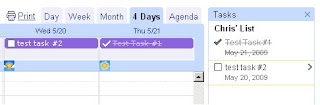
Good news: Google has just begun branching out its Tasks feature to some of its other services, beginning with Google Calendar. The integration between Tasks and Google Calendar is simple and straight-forward. If you add a task in Gmail, it goes over to Google Calendar. And if you associate a due date with the task, then the task will not only show up in your Tasks list, but also in your Google Calendar!
To see a screenshot of how this integration works, look below.
Good news: Google has just begun branching out its Tasks feature to some of its other services, beginning with Google Calendar. The integration between Tasks and Google Calendar is simple and straight-forward. If you add a task in Gmail, it goes over to Google Calendar. And if you associate a due date with the task, then the task will not only show up in your Tasks list, but also in your Google Calendar!
To see a screenshot of how this integration works, look below.

As you can see, the tasks are now shown in the calendar as well as the list. As the tasks are completed, check marks and strike-throughs are used.
This clean integration among Google products shows the potential that Google Tasks has in the future and why it continues to be my to-do manager of choice.
April 18, 2009
Gmail Suggests To Whom You Should Send Emails
Google keeps trying to help you send better emails with Gmail.
First, there was Mail Goggles, a feature to help you stop sending obnoxious, angry or flaming emails. Goggles, when enabled, will ask you a series of math questions before sending your email. The idea is that if you take a few minutes to cool down -- or sober up -- before hitting send, you might save yourself great embarrassment.
Then, came Undo Send, which puts a five to 10-second hold on all outgoing messages. So if you send an email with a typo, or to the wrong person, or one which might land you in hot water, you can undo it.
Now, Gmail Labs has created a “suggest more recipients” feature that suggests contacts that you might want to include in a group email based on the people you’ve grouped together as email recipients in the past. No more accidentally leaving out that important person who needs to know.
For example, if you often send family emails to your mother, father, spouse, sister and brother, when you start composing an email to your mother and father, Gmail will suggest adding your sister, spouse, and brother. The feature is triggered only after you’ve added at least two recipients to the email.
To enable the feature, go to Gmail Labs and turn it on as a setting.
[via TechCrunch]
First, there was Mail Goggles, a feature to help you stop sending obnoxious, angry or flaming emails. Goggles, when enabled, will ask you a series of math questions before sending your email. The idea is that if you take a few minutes to cool down -- or sober up -- before hitting send, you might save yourself great embarrassment.
Then, came Undo Send, which puts a five to 10-second hold on all outgoing messages. So if you send an email with a typo, or to the wrong person, or one which might land you in hot water, you can undo it.
Now, Gmail Labs has created a “suggest more recipients” feature that suggests contacts that you might want to include in a group email based on the people you’ve grouped together as email recipients in the past. No more accidentally leaving out that important person who needs to know.
For example, if you often send family emails to your mother, father, spouse, sister and brother, when you start composing an email to your mother and father, Gmail will suggest adding your sister, spouse, and brother. The feature is triggered only after you’ve added at least two recipients to the email.
To enable the feature, go to Gmail Labs and turn it on as a setting.
[via TechCrunch]
March 20, 2009
Undo Embarrassing Emails with Gmail's Undo Send
Tired of sending emails that you really should not have sent?
A few months ago, I wrote about Mail Goggles – a feature in Google’s gmail that, when enabled, will ask you a series of math questions before sending your email. The idea is that if you are not in the right state of mind to solve a few math problems, you might want to reconsider sending the email you just wrote.
Now Google has added another feature to gmail – Undo Send – that puts a five to 10-second hold on all outgoing messages. So if you sent an email with a typo, or to the wrong person, or one in which you said something you should not have, Undo Send can help you out.
Gmail users can enable the Undo Send feature by going into their Labs settings (the green flask at the top of the screen) and turning it on. When enabled, every time you send an e-mail, you'll see an undo link at the end of the confirmation message that appears at the top of your inbox. Do nothing and the email is sent. Click undo and the email reverts back to your compose screen.
Undo Send cannot pull back an email that has already gone out. But using it with Mail Goggles should help you stop sending embarrassing – or costly – emails.
[via Wired.com]
A few months ago, I wrote about Mail Goggles – a feature in Google’s gmail that, when enabled, will ask you a series of math questions before sending your email. The idea is that if you are not in the right state of mind to solve a few math problems, you might want to reconsider sending the email you just wrote.
Now Google has added another feature to gmail – Undo Send – that puts a five to 10-second hold on all outgoing messages. So if you sent an email with a typo, or to the wrong person, or one in which you said something you should not have, Undo Send can help you out.
Gmail users can enable the Undo Send feature by going into their Labs settings (the green flask at the top of the screen) and turning it on. When enabled, every time you send an e-mail, you'll see an undo link at the end of the confirmation message that appears at the top of your inbox. Do nothing and the email is sent. Click undo and the email reverts back to your compose screen.
Undo Send cannot pull back an email that has already gone out. But using it with Mail Goggles should help you stop sending embarrassing – or costly – emails.
[via Wired.com]
December 9, 2008
Gmail Adds Tasks for On-Line To-Do Lists
Yesterday, Gmail, my personal favorite web-email client, added the ability to add tasks via Gmail Labs. This is big news for me, as I had been using Remember the Milk (RtM) (with Gmail integration) for a while now. After using Gmail's Tasks, I can already tell that I'll be making the switch to Gmail for my online To-Do list.
Here are a quick rundown of some of the pros and cons of Gmail's Tasks:
Pros
- Direct and clean integration with Gmail: This is the most important feature for me, as I already use Gmail, Google Calendar, Picasa Photos, and Google Reader on an everyday basis.
 -Straightforward and simple design: One of my problems with RtM is the over complexity of the design. With Gmail's Tasks, everything is straightforward and simple to use.
- The ability to add emails to your Task list. This is another killer feature for me personally, as I often like to remember "To-do" certain things that are listed in an email.
- Many other features that are built in are pretty standard in most To-do managers such as due dates, notes on tasks, and the ability to view completed tasks.
- Finally, the ability to create individual lists is an excellent feature. This way, you could have lists such as "Work", "School" and a general "To-Do," if you liked.
Cons
- No Google Calendar integration. This one is a bit surprising, though I expect the integration to come soon.
- The lack of the ability to add tasks via phone. This one is probably the biggest con for me, as I frequently text RtM to add tasks on the go.
- Over-simplistic design, might be too simple for some.
- Lack of the ability to prioritize tasks.
While Remember the Milk has all of the features listed in the cons section, it lacks the ability to add email's as tasks, and also the tight single sign-in, Google account integration. These two major features are what are pushing me to use this as my new online to-do list.
Note: As mentioned earlier in the article, this feature is still in the Labs section in the Settings area of Gmail and must be enabled.
Here are a quick rundown of some of the pros and cons of Gmail's Tasks:
Pros
- Direct and clean integration with Gmail: This is the most important feature for me, as I already use Gmail, Google Calendar, Picasa Photos, and Google Reader on an everyday basis.
 -Straightforward and simple design: One of my problems with RtM is the over complexity of the design. With Gmail's Tasks, everything is straightforward and simple to use.
 - The ability to add emails to your Task list. This is another killer feature for me personally, as I often like to remember "To-do" certain things that are listed in an email.
- Many other features that are built in are pretty standard in most To-do managers such as due dates, notes on tasks, and the ability to view completed tasks.
- Finally, the ability to create individual lists is an excellent feature. This way, you could have lists such as "Work", "School" and a general "To-Do," if you liked.
Cons
- No Google Calendar integration. This one is a bit surprising, though I expect the integration to come soon.
- The lack of the ability to add tasks via phone. This one is probably the biggest con for me, as I frequently text RtM to add tasks on the go.
- Over-simplistic design, might be too simple for some.
- Lack of the ability to prioritize tasks.
While Remember the Milk has all of the features listed in the cons section, it lacks the ability to add email's as tasks, and also the tight single sign-in, Google account integration. These two major features are what are pushing me to use this as my new online to-do list.
Note: As mentioned earlier in the article, this feature is still in the Labs section in the Settings area of Gmail and must be enabled.
December 5, 2008
Fun Friday: Gmail Stickers
Do you regularly use Gmail, and wish there was some way to show others that it is your favorite web-based email service, other than constantly sending them invitations to join? Now you can, courtesy of the folks at Google.
Go here to get your free Gmail stickers!
Go here to get your free Gmail stickers!
October 11, 2008
Take Another Look at That Email Before You Send It with Mail Goggles
How many of you have sent late night emails that you later regret? To bosses, co-workers, exes?
I know I have.
Well, if you use Google’s gmail, the company is trying to help you stop this behavior. Google Labs has just developed a new feature for gmail – Mail Goggles – that, when enabled, will ask you a series of math questions before sending your email. The idea is that if you are not in the right state of mind to solve a few math problems, you might want to reconsider sending the email you just wrote.
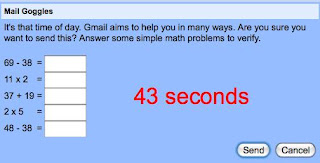 To enable Mail Goggles, in gmail go to Settings then Lab. Then, set when you want Mail Goggles to check your email -- and the difficulty of the math questions -- by going to Settings then General.
Now, quit sending those emails that you later regret.
I know I have.
Well, if you use Google’s gmail, the company is trying to help you stop this behavior. Google Labs has just developed a new feature for gmail – Mail Goggles – that, when enabled, will ask you a series of math questions before sending your email. The idea is that if you are not in the right state of mind to solve a few math problems, you might want to reconsider sending the email you just wrote.
 To enable Mail Goggles, in gmail go to Settings then Lab. Then, set when you want Mail Goggles to check your email -- and the difficulty of the math questions -- by going to Settings then General.
Now, quit sending those emails that you later regret.
Subscribe to:
Posts (Atom)