September 30, 2008

Web 2.0 and the Change in Our Work Lives

Cole Camplese, the director of Education Technology Services at Penn State University, writing in The Christian Science Monitor, has given the best definition of Web 2.0 I have read: What YouTube's 'Charlie bit my finger' tells us about Web 2.0.

In part, Camplese writes:

It's easy to criticize the rise of participatory social media as a giant waste of time. And it's true that a fair amount of what's being created is adolescent. But that criticism misses the point: This trend is setting the stage for greater long-term engagement. It's an indicator that people are working to find new ways to collaborate and to be part of something larger than they are individually. The sheer immensity of the participation is the story.

Think about where the Internet was just a decade ago. Getting online was a chore. News sites were updated just once or twice a day. That was the static world of Web 1.0. Ironically, that platform emerged from the government's desire to promote collaboration among researchers and scientists, yet at the outset, it seemed best suited for e-commerce.

Today the Web landscape is dominated by blogs, wikis, and social networks. It is finally fulfilling its original promise of interaction, engagement, collaboration, and conversation. We are living through a media revolution that is set to explode this political season.

And who is driving this revolution? Teens. For them, this isn't "technology," it's just the way things are.

Web 2.0 has changed the way we all work, especially those of us in the information field. We have adapted our public libraries to a new environment -- one of interaction, engagement and collaboration. From being collectors of data, we are now packagers and distributors: Our job is to anticipate your need, and push information out to you, when and how you want it.

If you are interested in Web 2.0, check out the classes we offer on the subject on our Schedule of Events.

Mouse-less Navigation in Office 2007

Keyboard shortcuts are one of my favorite things about Microsoft Office. I've always preferred using the keyboard shortcuts over the mouse; I don't have to take my hands off the keyboard that way, and my speed increases.

So, I was thrilled when I saw the great new keyboard shortcut layout in Office 2007. This feature overlays the keyboard shortcuts on top of your Office 2007 ribbon.

To activate the layout, hit the Alt key. The shortcut labels will be overlayed on the ribbon. Then, you can navigate simply by hitting the appropriate label on the keyboard. Navigation between the various tabs and functions becomes as easy as pressing the letters assigned!


click for a larger view
To de-activate the shorcut overlay, just hit the Alt key a second time.

This overlay will show up in all Microsoft 2007 Office products that have the ribbon interface.

September 28, 2008

Text Messaging Outpaces Cell Phone Calls

According to Alex Mindlin, in the September 28 New York Times:

In the fourth quarter of 2007, American cellphone subscribers for the first time sent text messages more than they phoned, according to Nielsen Mobile. Since then, the average subscriber’s volume of text messages has shot upward by 64 percent, while the average number of calls has dropped slightly.

Nicholas Covey, director of insights for Nielsen Mobile, attributed the spike in messaging to the spread of QWERTY-style keypads, whose users send 54 percent more text messages than those with ordinary keypads. He also said that phone companies had encouraged users to text by offering large or unlimited text-messaging bundles.

Teenagers ages 13 to 17 are by far the most prolific texters, sending or receiving 1,742 messages a month, according to Nielsen Mobile. By contrast, 18-to-24-year-olds average 790 messages. A separate study of teenagers with cellphones by Harris Interactive found that 42 percent of them claim that they can write text messages while blindfolded.

Not only has text messaging replaced email, apparently it is replacing cell phone use.

September 27, 2008

Change the Color Scheme in Microsoft Office 2007

Feeling blue? How about silver?

Well, now you can change your color scheme in any Microsoft Office 2007 software to blue, silver, or black, using the Options command. (For this post, I will demonstrate in Word.)

First, click on the Office button in the top left corner, and then click on Word Options at the bottom of the pop-up menu.


Make sure you are under the Popular heading (on the left). Then look for Color Scheme. Click on the drop-down arrow next to the choices and select the color you want (blue, silver, and black).


Click on OK at the bottom of the menu. Your new color scheme will appear immediately.

(For more tips on Microsoft Word and other Office products, enter the program name into the dialog box at the top left of this blog page, and click on Search Blog. You'll see what other tips the Tech Desk has to offer.)

September 26, 2008

Computer Basics: Saving Passwords and Usernames in a Web Browser

At the Troy Public Library's Technology Center, we teach several classes that cover basic computer skills. However, in these classes we can't cover everything. Using our blog, I hope to cover some of those topics about which we receive many questions, but can't always address in classes.

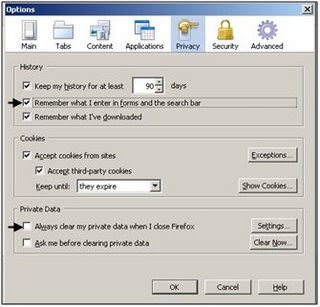
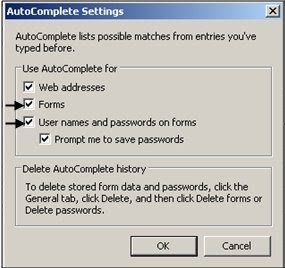
One common question that we are asked is: How can my web browser remember my password information so that I don't have to type it in all the time? Follow the steps below to have Firefox 3 or Internet Explorer 7 remember this data to make life a little easier!

For Firefox 3:
1. Click on Tools, then click Options.

2. Click on the Privacy tab.

3. Make sure that there is a check next to "Remember what I enter in forms and the search bar." Also make sure there is no check next to "Always clear my private data." If this is checked, all saved data (information in forms, passwords) will be erased every time you close Firefox!

For Internet Explorer 7:

1. Click on Tools, then click Internet Options.

2. Click on the Content tab, then click on the Settings box under AutoComplete.

3. Make sure "Forms" and "User names and passwords on forms" is checked.

September 25, 2008

The Good and the Bad of New Technologies in the Work Place

According to the latest study by the Pew Internet and American Life Project, 62% of us who work full- or part-time use the internet or email at our work place.

Such "networked workers," as the study calls us, are not only connected while at work, but are also more likely than average Americans to have access to a wide variety of technological gadgets outside of the work place. We are more likely to own cell phones, desktop and laptop computers, and personal digital assistants (PDAs).

Is being networked all day a plus or a minus?

According to Pew, a large majority of wired workers note big improvements in our work lives as the result of technologies such as the internet, email, cell phones and instant messaging:
• 80% say these technologies have improved our ability to do the job.
• 73% say these technologies have improved our ability to share ideas with co-workers.
• 58% say these tools have allowed us more flexibility in the hours we work.

At the same time, half of us note various negative impacts of
communications technologies:
• 46% say these technologies increase demands that we work more hours.
• 49% say these technologies increase the level of stress in our job.
• 49% say such technologies make it harder for us to disconnect from work when we are at home and on the weekends.

So what do you think: Does technology improve your job performance or hurt your time off the job? Take our poll (to the right) and let us know.

To read the entire Pew report, go to Networked Workers.

September 24, 2008

Use Split to Speed Up Your Navigation in Microsoft Word

Looking for ways to speed up navigation in Microsoft Word? Use the Split function to split your screen in two!

It's easy to use Split. Hit Ctrl+Alt+S to activate the function. (In Office 2007, you can also click on the View tab and then Split in the Windows group.) Once the feature is active, it will split your screen in half, allowing two separate independent navigation windows for the same document. This can be extremely helpful if you want to look at two different parts of a large document without having to leave either section.

Hitting Ctrl+Alt+S a second time (or clicking on the View tab then Remove Split in the Windows group) will turn off the split screen.

This function is also possibl
e in older versions of Microsoft Word, but you will have to use the keyboard shortcut.

Check below for a screen shot of this feature in action.

September 21, 2008

Determine Political Fact from Fiction with Factcheck.org

With the presidential election only six weeks away and the debates still to come, both major parties will be propping up their candidate and disparaging the other side. Both will be offering statistics about their plans, and why their opponent's plan is not good for the country.

While much of what is said during political campaigns makes for good sound bites, how much of it is based in fact?

Factcheck.org, from the Annenburg Public Policy Center of the University of Pennsylvania, helps separate political fact from fiction. Factcheck.org is a nonpartisan, nonprofit organization that checks the accuracy of politicians statements.

The next time you hear something that sounds too good to be true from the campaign trail, go to factcheck.org to see what the truth is.